Have you ever come across the term “wiki” and wondered what it means?
Imagine having something similar to Wikipedia for your personal or team use. It’s like having a private hub where you and your colleagues can work together on projects, keep important documents safe, and access all your work in one place with a simple click.
Whether you’re a big company or a small business, wikis have become a crucial way to gather all your essential information in one spot. They’ve replaced the need for old-fashioned printed employee guides or sending style tips through emails that get lost.
In this article, we’ll explore the concept of a wiki, look at examples of what people usually store in them, and even guide you on how to make your wiki.
Let’s get started!
What is a Wiki? (Definition)
A wiki is defined as a type of collaborative website or platform that allows multiple users to create, edit, and organize content collaboratively. The term “wiki” comes from the Hawaiian word “wikiwiki,” which means “quick” or “fast.” The defining feature of a wiki is its open and editable nature, enabling users to easily contribute and modify content without requiring extensive technical knowledge or coding skills.
The most well-known example of a wiki is Wikipedia. This online encyclopedia allows volunteers worldwide to write and edit articles on various topics.
Internal Wiki vs. External Wiki
In the world of information sharing, there are two main types of wikis: internal and external. These wikis serve different purposes and cater to different audiences. Let’s look at what sets them apart and when to use each type.
| Aspect | Internal Wiki | External Wiki |
|---|---|---|
| Purpose | Collaboration within the organization | Public information sharing and engagement |
| Access | Restricted to authorized team members | Open to anyone interested |
| Content | Sensitive data, business documents | Product specs, support info, open-source |
| Security | High, content is kept within the team | Lower, content accessible to the public |
| Audience | Limited to the internal team | Broad audience, including the general public |
| Growth Adaptability | May require transition as team grows | Scales well to engage a larger user base |
| Decision Factors | Need for secure collaboration | Desire to share information with everyone |
Choosing the Right Wiki for Your Team
Consider your goals when deciding which type of wiki is right for your team. Do you need a secure space for internal collaboration, document management, and sharing sensitive data? Then, an internal wiki is your best bet. It keeps your confidential information within the team and safeguards your privacy.
Alternatively, an external wiki is more suitable if you’re all about engaging with a wider audience. This wiki type helps you establish a virtual presence where people can access information conveniently.
As your team grows and evolves, your wiki needs might change, too. It’s crucial to think ahead. Will your current wiki be sufficient as your team expands? If not, you might need to transition to a different wiki type.

If this was useful, read this…
Easily Integrate a Wiki into Your Site Without Coding Skills →
How Can You Use Internal Wiki?
A wiki is a versatile tool that can cater to various organizational needs. It promotes knowledge sharing, collaboration, and streamlined communication across departments and teams.
- Store technical documentation such as how-to guides and tutorials.
- Organize meeting notes and minutes for easy reference.
- Centralize company policies and guidelines to ensure clarity.
- Manage project plans and timelines to track progress.
- Archive reports and analysis for future reference.
- Compile customer service resources like FAQs.
- Maintain team contact information and organizational charts.
- Share news and updates to keep everyone informed.
- Document best practices and procedures for consistent workflows.
- Host employee handbooks and HR policies.
- Provide help desk resources for technical problem-solving.
How To Create a Wiki In Easy Steps?
Have you ever wanted to create a wiki?
It’s not as complicated as it might sound. A wiki is like a website where you and your team can collaborate and share information. Whether you want to keep things internal for your organization or make them public for everyone to access, here’s how you can get started:
Step 1: Decide the Type of Wiki
Think about why you’re creating a wiki. Are you onboarding new team members, making meetings more efficient, or storing company info? Clearly defining your goals will help you stay focused.
Then, consider whether you want an internal or external wiki. If you’re thinking about sharing information within your organization, an internal wiki is the way to go. But if you’re aiming to make information available to the public, then an external wiki is what you need.
Step 2: Choose Your Platform
Now it’s time to choose where your wiki will live. There are different software options available, each with its features. If you’re part of a large company, software like MediaWiki, which powers Wikipedia, might be a good fit. Simpler options like DokuWiki or Google Sites could work well for smaller businesses. If you want user-friendly software with extra features, Tettra is a premium option for beginners.
With various wiki software options available, pick one that suits your needs. Some are complex with advanced features, while others are simpler and organize existing documents.
If this was useful, read this…
Step 3: Set Rules and Guidelines
Security and community are essential when starting a wiki. Work with your IT department to ensure your content follows company policies and laws. Establish community guidelines, too, to prevent irrelevant or incorrect information. Setting style rules and deciding how edits will be handled can help keep your wiki organized. Introduce the wiki software to your team through a meeting. Explain how it works in its design, and get everyone on board.
Step 4: Add Content
Now comes the fun part – adding content to your wiki! Make sure to structure your wiki in a user-friendly way. You can use categories, tags, and links to make navigation easier. Start by listing the main topics your wiki will cover and organize them into categories. You can also use department names as categories. Internal links will help readers find related content quickly.
Tip: Identify Key Contributors. Determine who in your organization has specialized and institutional knowledge. These individuals can be valuable contributors to your wiki.
Step 5: Assign Roles and Permissions
As your wiki grows, you’ll want different people to contribute. Assigning roles and access levels ensures that only the right people can edit specific content. For instance, customer service reps might have access to certain pages, while the marketing team could have broader access. This keeps things organized and prevents accidental edits.
Use Templates: Starting from scratch can be daunting. Utilize templates to make the process faster and more organized.
Creating a wiki might seem overwhelming, but with these steps and tips, you’ll be well on your way to building a valuable resource for your team or the wider public.
If this was useful, read this…
Bit.ai- The Best Wiki Site Tool Out There!
Bit.ai is an AI-powered docs, wikis, and knowledge management platform built for teams that want to create, collaborate, and share knowledge seamlessly.
Bit.ai is the perfect platform to build and maintain a company wiki. Teams can collaborate in real time, create smart documents, organize information using workspaces and folders, and quickly search across all documents to find exactly what they need.
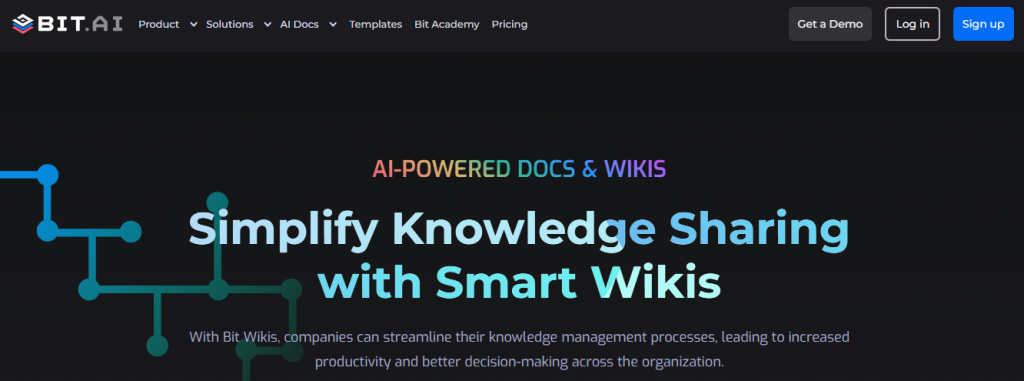
Bit.ai’s smart wikis take your documents to a whole new level. With Bit’s interactive living documents, you can weave all kinds of digital content together with your text to make your content truly come alive across your wiki site.
Let’s take a look at how you can make your enhance your document creation process with Bit.ai:
Media Integration: Easily integrate over 100 different types of digital media into your documents, including videos, spreadsheets, databases, and more from various third-party websites. Additionally, add digital content from your own library, such as files, cloud files, web links, and rich embeds.
Cloud File Systems Integration: Seamlessly incorporate content from your cloud file systems like Google Drive, OneDrive, Sharepoint, Box, or Dropbox. This feature allows you to search across your cloud storage systems and quickly locate and insert files into your Bit documents.
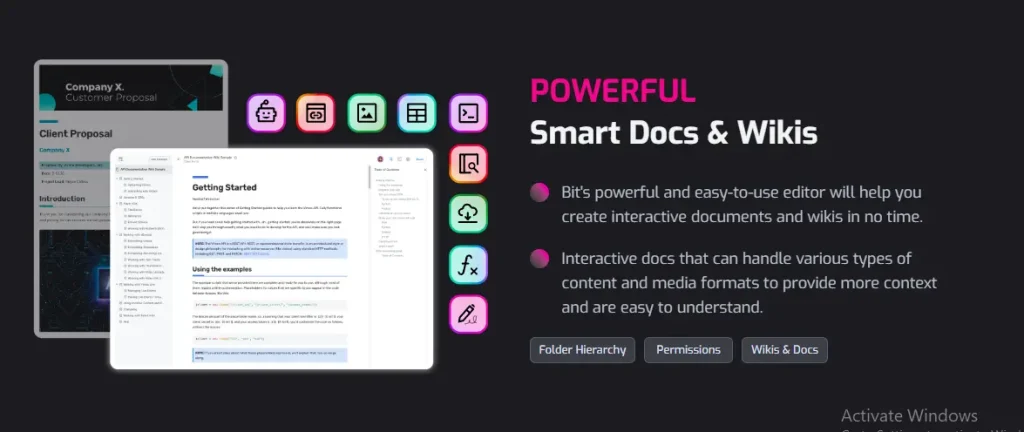
Table Customization: Create and customize tables to better organize your information and enhance the visual appeal of your documents. Format text within tables, justify columns and adjust alignments to ensure your tables look neat and organized.
File Attachments: Easily attach different types of files to your documents, including PDFs, PowerPoints, Word documents, Excel spreadsheets, and multimedia files. Attachments are viewable directly within your documents for convenient access.
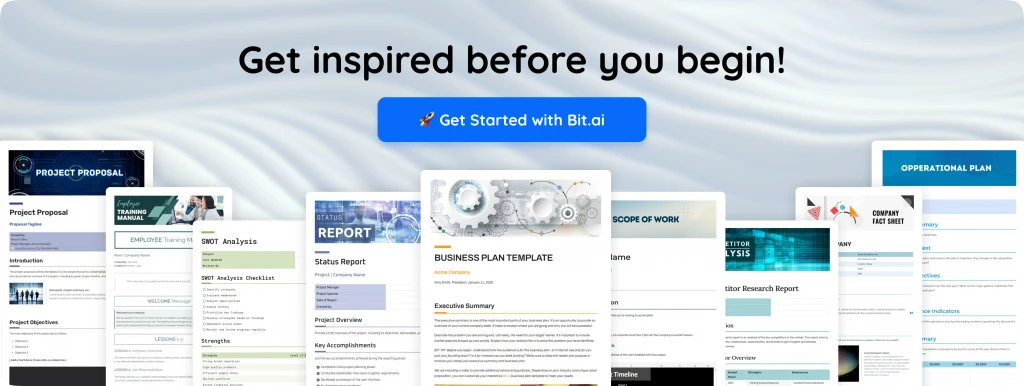
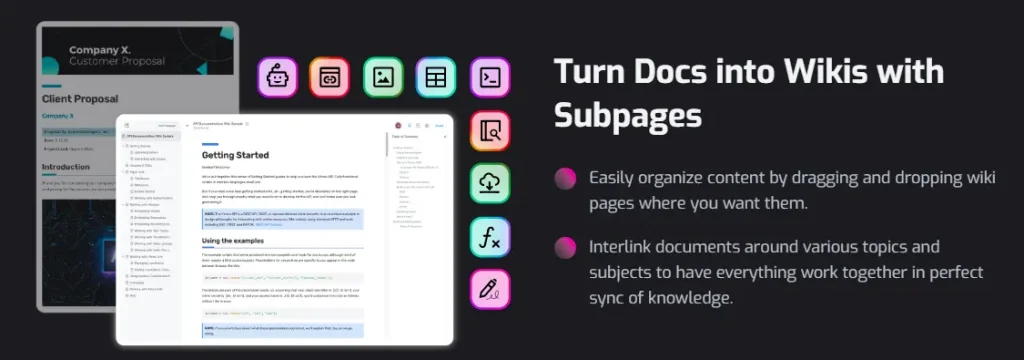
Turn Docs into Wikis: Turn your document into a wiki by adding subpages, creating a hierarchy, and structuring content for collaboration. This feature can be used internally or shared externally, making it versatile for team collaboration.
Smart Document Editing: Simplify design decisions and adjust text formatting effortlessly with Bit’s smart document editor. Customize headings, create lists, emphasize points, and hyperlink text with ease.
Inline Comments: Discuss specific areas of the document by highlighting text, adding comments, and tagging team members directly within the document.
Themes: Refresh the appearance of your document instantly with Bit’s collection of themes. Change primary theme colors and font styles to transform the document’s vibe.
Code Blocks: Elevate technical documents with syntax-highlighted code blocks, bringing clarity and style to technical content such as reference guides.
Share and Collaborate: One of the great features of Bit.ai is its ability to share live wikis with external stakeholders. This means you can give them access to the latest information without needing direct access to your internal systems.
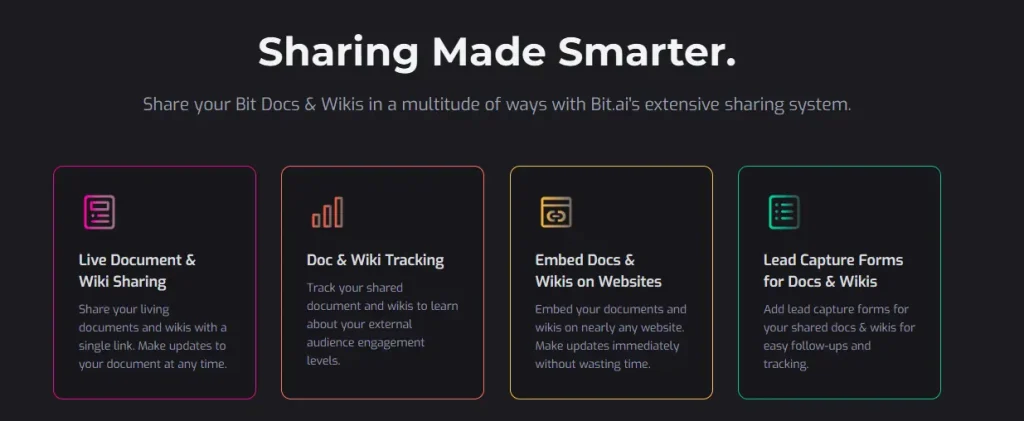
You can simply enable sharing and generate a secure link that grants read-only access to your wiki. You can also track page views, collect feedback, and even customize the sharing settings by adding password protection or setting an expiration date for the link.
Whether you are a fast-growing startup or an established organization, Bit helps you create a wiki site that grows alongside your team and keeps knowledge accessible at all times.
Final Thoughts
Making a wiki site isn’t as complex as it might seem. It’s about having a plan and being dedicated. You can establish a thriving wiki without much hassle by using suitable software and security steps, along with clear community rules and steady updates.
The best way to approach making a wiki is to take it step by step. Start by sharing the most crucial and correct details and then gather input. As you become more confident in the content and organization, you’re ready to unveil the wiki to your group.
Happy wiki-making!
FAQs
1. What is a wiki?
A wiki is a shared online space where information lives and grows over time. Anyone with access to the wiki can add notes, update information, and correct anything that may be incorrect or outdated. Teams often use wikis to centralize their documentation process so people don’t have to search through emails or old files.
2. How does a wiki site work?
Think of a wiki as a large collection of linked pages. Users can click into any page, add new information, fix content, or build new sections directly from a web browser. This makes wikis a flexible tool for teamwork and shared knowledge.
3. What’s the difference between an internal wiki and an external wiki?
An internal wiki is private; only team members can access it, keeping your company’s information safe within the group. An external wiki is open to the public, allowing anyone to find and read the content you choose to share.
4. Why should my business use a wiki?
A wiki helps your team keep knowledge in one place, avoid lost emails or files, onboard new members faster, and ensure everyone can find important information without asking around. It acts as a central hub for documents, guides, and procedures.
5. Is it hard to build a wiki site for my team?
Not at all. Building a wiki is easier than most people expect. Start with a simple goal—what you want the wiki to help with. Then choose an easy-to-use tool, set a few basic rules, and begin with just a few pages. As your team uses it, the wiki naturally grows over time.
If this was useful, read this…
- Company Wiki: What it is & Why You Need it For Your Business? →
- Business Wiki: The Ultimate Guide To Create One For Your Company! →
- Company Wiki vs Blog: What are the Differences & the Similarities? →
- Company Wiki Vs Knowledge Base: Understanding The Key Differences! →
- Internal Wiki: How to Create and Manage It Efficiently →