Quick answer:
To collaborate with external partners without losing document control, share one live document from Bit.ai workspace instead of sending file attachments. Give each partner view, comment, or edit access only, track who opens and engages with the file, keep a version history, and set an expiry date so access ends when the project ends.
Sharing documents is an essential part of working with external partners. A client needs your proposal, a vendor needs your specifications, an agency needs your brand files, and a legal adviser needs the contract to review before anyone signs. Each of them also sends something back, such as feedback, edits, or files of their own.
But the problem is that once a file leaves your inbox, you can no longer control who has it, which version is current, or what they do with it.
This guide shows how to keep that control on your documents while working with external partners. You will learn what external document collaboration means, how to keep control while clients, vendors, and agencies work on your files, and how to manage external collaboration using Bit.ai.
What Is External Document Collaboration?
External document collaboration is the process of working on a document with people who are outside your company, such as clients, vendors, agencies, freelancers, auditors, and legal advisers. They read, comment on, or edit the same document your team works on, but they do not use your company’s accounts, devices, or internal systems.
Who Counts as an External Partner?
Any person who needs your document but does not work for your company is an external partner. Common examples can be:
- Clients who review proposals, reports, and contracts.
- Vendors and suppliers who return quotes, specifications, and purchase terms.
- Agencies and freelancers who write, design, or edit on your behalf.
- Legal advisers and auditors who check terms and records before you sign or submit them.
- Investors and board members who read updates and financial summaries.
How Does External Document Collaboration Differ From Internal Collaboration?
When your own team works on a document, your company controls the accounts, the devices, and the storage. You can see who has access, and you can revoke an employee’s access through your existing systems.
With an external partner, you control none of those things. The partner uses their own email address, their own computer, and often their own software. You need to give them access to specific documents without exposing other files or internal information.
That’s why external document collaboration requires clear access permissions, visibility into document activity, and a reliable way to revoke access when the work is complete.
While external document collaboration makes it easier to share information and work with people outside your organization, it also introduces challenges around access, version control, and document security.
Want to make document collaboration smoother for both internal teams and external partners?
Explore the essential features and tools that make shared document workflows easier to manage →
Why Document Control Breaks Down When Working With External Partners
Document control becomes difficult when you share files as email attachments or separate copies. After a file leaves your inbox, you cannot update it, limit what the recipient does with it, or see who else receives it. Let’s look at the five key challenges that make document control difficult when working with external partners.
Every Email Attachment Creates Another Document Version
Let’s say you send a vendor contract to three suppliers, and each one returns it with changes. You now have three edited files and one original to manage. You then have to compare the files and merge the changes manually. And if one supplier changes a payment term without highlighting it, spotting that change becomes even more difficult.
You Can’t Reliably Recall a Sent Attachment
If you accidentally send the wrong file, such as a draft with your internal pricing notes, recalling the email rarely works. In most email systems, a recall only succeeds when the recipient is in the same organization and has not opened the message.
With external partners, these conditions are often difficult to meet, leaving you with little control over a file once it has been delivered.
You Can’t Track What Happens to Shared Documents
Once you send a document, the recipient can download, print, or forward it to someone who was never meant to see it. You get no notification for any of these, making it difficult to know where your document ends up or who has access to it. You may only discover a problem when confidential information reaches the wrong person, such as a competitor getting hold of your pricing details.
Different Tools Make Document Collaboration Harder
You write in Word, your client reviews in Google Docs, and their legal team prints a PDF to add comments by hand. As an end result, comments end up in email replies, chat messages, and photos of paper pages. No one holds the full record of feedback, so team members may end up working with incomplete or outdated information.
Document control is only one part of managing business files.
Confidential Content Can Spread Beyond Your Control
Contracts, NDAs, client data, and pricing sheets often contain sensitive business information. When you share these files as email attachments, you have limited control over where they go next. If a client asks who accessed their data and when, an email trail cannot answer. You can only show who you sent it to, not who read it.
Well, all these challenges highlight that sharing a document is easy, but maintaining control over it after sharing is much harder. The key is to move beyond simply sending files and adopt a more structured approach to external collaboration.
8 Ways to Collaborate With External Partners Without Losing Document Control
Here are eight practical ways to collaborate with external partners without losing document control.
1. Share One Live Document Instead of Email Attachments
If you share documents as email attachments, it creates multiple copies that can quickly become difficult to manage. Each person may edit a different version, leaving you to compare files and reconcile conflicting changes.
Instead, share a live document that everyone can access from a central location. This gives partners one place to review information, add feedback, and work on the latest version.
How to do it: Upload or create the document in a workspace like Bit.ai and send the link to your external partners. Ask them to review or edit the same document rather than downloading and returning separate copies.
2. Set Access Permissions for Each Partner
Not every external partner needs the same level of access to your documents. A client reviewing a proposal may only need viewing permissions, while a contractor working on the content may need editing access.
Giving everyone full access increases the risk of accidental changes or unwanted sharing.
How to do it:
- Assign permissions based on each partner’s responsibilities.
- Start with view-only access and allow commenting when feedback is needed.
- Grant editing permissions only to partners who need to make changes.
- Review and update permissions as project responsibilities change.
The right permissions also depend on the type of document you’re sharing. Use the table below as a guide to deciding which access level to assign to each document.
Recommended Access Permissions by Document Type
| Information Type | Typical Access |
| Project brief | View / Comment |
| Shared deliverables | View / Edit |
| Feedback documents | Comment / Edit |
| Internal financial information | Internal only |
| Client-specific resources | Restricted external access |
| Internal strategy documents | Internal only |
| Final approved documents | View / Download, where appropriate |
| Internal working notes | Internal only |
3. Create a Separate Workspace for Each Partner or Project
Keep every client, vendor, and agency in its own workspace so that no partner can see another partner’s files. This matters most when you serve competitors or when one vendor’s pricing must stay private from another’s.
A separate workspace also makes the end of a project clean. You remove one workspace or one group of people, and you do not need to check dozens of individual files for who still has access to your content.
4. Turn On Version History and Change Tracking
Use a document collaboration tool that records every edit with the editor’s name and the time, so you can compare any two versions and restore the earlier one. This answers the question that email attachments cannot: what exactly changed between the draft you sent and the one that came back.
This is especially useful when external partners review contracts, update pricing, or revise project requirements. Instead of comparing separate email attachments manually, you can review the document’s revision history to understand what changed and decide which updates to keep.
5. Track Who Opens and Reads the Document
Check view data before you follow up with external collaborators, so you know whether the partner has opened the file, how many times, and how long they stayed.
If a client has not opened your contract in a week, you know to call instead of waiting. If three people from their company opened it on the same afternoon, you know it is under review.
6. Set Expiry Dates, Passwords, and Link Limits
Set an expiration date for shared links and use password protection for documents containing confidential information, such as contracts, pricing sheets, and customer data. An expiry date removes access automatically when the project closes, so a vendor you stopped working with in March cannot open your pricing sheet in December.
You should also limit who can open a shared link. Links restricted to specific recipients offer more control than links that anyone can access if they have the URL.
Sharing sensitive files requires more than a password.
7. Lock the Document Once It Is Approved
After a document is reviewed and approved, lock it so nobody can change it, including partners who still have the link. A locked document keeps the approved wording, prices, and dates fixed, so the version your partner signs is the version you approved.
This matters most for contracts, final proposals, and pricing sheets. Without a lock, a person with edit access can change a figure after approval, and you may only find out when the two sides disagree about what was agreed.
8. Name an Owner and Set a Review Process for Each Document
Assign one person on your team as the owner of every shared document. Define who can review and approve changes before they become part of the final document. The owner manages access, answers questions, coordinates feedback, and ensures permissions are updated when the project ends.
Without clear ownership, access permissions can go unchecked, temporary collaborators may retain access longer than necessary, and important edits may go unreviewed.
Now, even with clear ownership and review processes, the way you share documents plays a major role in how much control you retain. To see how different sharing methods compare, let’s look at how email attachments, shared drive folders, and dedicated collaboration workspaces handle document management.
Still comparing document versions manually?
Learn how version control helps teams track edits and restore previous versions. →
Secure vs. Risky External Collaboration: A Quick Comparison
Email attachments, shared drive folders, and dedicated collaboration workspaces each handle control over the documents differently. The table below compares these three approaches to help you understand which works best for secure external collaboration.
| Factor | Email attachments | Shared drive folders | Dedicated collaboration workspace |
| Number of copies | One new copy per recipient, plus every forward | One original, but people often download copies | One live document |
| Version control | None. You must merge returned files by hand | Basic version history, but file names often multiply | Full history with editor name and time |
| Access control | None after you press send | Set per folder, so everyone in the folder sees every file | Set per document and per person |
| View tracking | None | Limited. Most drives show who has access, not who opened the file | Shows who opened the document and when, in most tools |
| Ending access | Not possible | Manual. Someone must remember to remove each person | Immediate, or automatic through an expiry date |
| Best used for | A final, signed record | Internal team files | Client, vendor, and agency work that changes over time |
Conclusion: Email attachments give you no control after sending. Shared drive folders give you control at the folder level, which works inside your team well but leaves gaps when you add outside partners.
A dedicated workspace is the only option of the three that brings all aspects of document collaboration like permissions, version history, activity tracking, and access expiration, together in one place. The next section covers one such platform, Bit. ai. Let’s explore how it works and which document control features it provides.
How Bit.ai Helps You Collaborate With External Partners and Keep Document Control
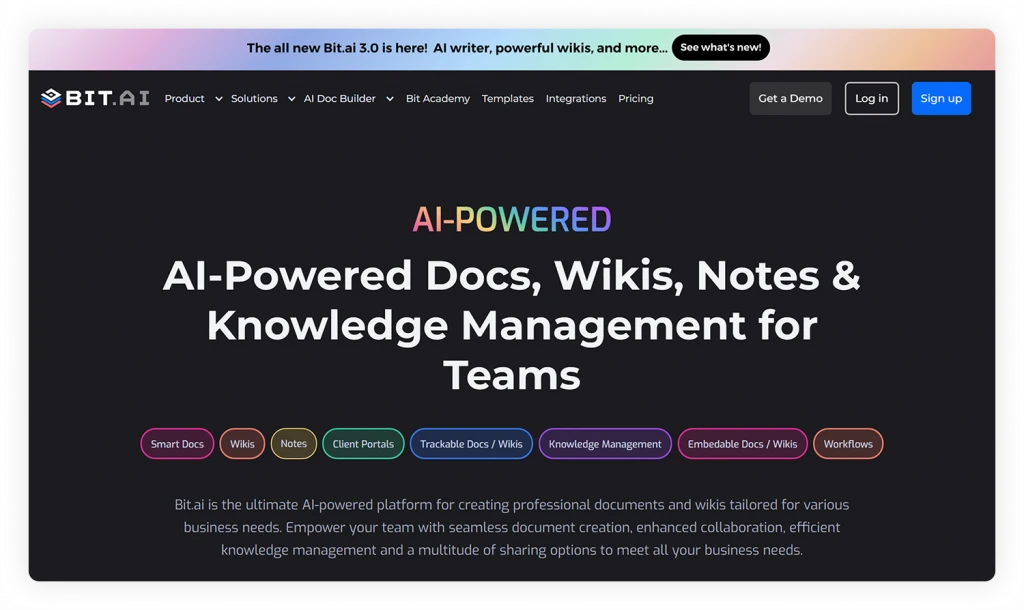
Bit.ai is an AI-Powered document collaboration and knowledge management platform that lets you create, share, and manage documents and wikis with your team, clients, and external partners. You organize work into workspaces, and share any document as a live link, a trackable link, or an embed on a website.
Which Bit.ai Features Support External Collaboration?
Here’s how you can use Bit.ai to maintain document control throughout the collaboration process:
- Share documents through live links: Instead of sending attachments back and forth, share a single document that partners can access online.
- Guest access with login, so you know who is reading: You can invite clients, partners, and contractors into selected workspaces as guests. They sign in with their own account, and you give them read-only or comment-only access. Guests cannot see workspaces they were not invited to.
- Client portals: Create a centralized destination for clients to access relevant documents, project resources, and shared information without searching through email threads.
- Trackable links, so you can see what happens after you share: A trackable link shows how much time people spent on the document and how often they came back. You can also add a lead capture form that asks for a name and email before someone reads.
- Lock documents to prevent unwanted edits: Once a document is finalized or approved, you can use Bit.ai’s Lock Document feature to prevent further modifications.
- Passwords and expiration dates, so access ends on time: You can add a password to a shared document and set a date on which the link stops working. You can change or remove both settings after you create the link.
- Embeds and file previews, so documents stay complete: You can place Google Sheets, Figma files, PDFs, and videos inside a document, so a document does not need separate attachments.
If you want to simplify document sharing with external partners, explore Bit.ai on the free plan with your next client document.
Looking for a dedicated space to manage client files, feedback, approvals, and communication?
Explore how client portals help businesses organize the entire client collaboration experience. →
External Collaboration Best Practices
Run this checklist every time you share a document with someone outside your company. It has three stages, because control can fail before you share, while the partner works, and after the project ends.
Before Sharing Documents With External Partners
- Name an owner: One person on your team is responsible for this document, including who gets access and when it ends.
- Remove internal content: Delete pricing notes, internal comments, and draft text that the partner should not see.
- Create or choose the right workspace: Put the document in a workspace made for a particular partner or project, so no other partner can see it.
- Set the lowest permission: Choose view or comment for each person, and give edit access only to someone whose task requires it.
- Add an expiry date: Pick the date the project or contract ends, and set the link to stop working on that day.
- Add a password if the document is confidential: Use one for contracts, NDAs, and anything with client data, and send the password in a separate message from the link.
While Collaborating on Shared Documents
- Share a live link, not an attachment: Everyone should read and comment on the same document.
- Keep all feedback in the document: Ask partners to comment inside the file instead of replying by email, so no feedback is lost.
- Check views data before you follow up: See who opened the file and when, so your next message is based on what happened.
- Review changes before accepting them: Use version history to check any edits to prices, dates, or contract terms.
After the Project Ends
- Confirm access has ended: Open the access list and check that expired links and removed guests no longer have entry.
- Remove people who no longer need access: Take out any partner who was added for a short review and never removed.
- Save the final version: Export a PDF of the signed or approved document and store it with your internal records.
- Note what you would change: If a partner needed more access, or a step slowed you down, update your sharing rule so the next project starts better.
So, with the right practices and workspace like Bit.ai, you can work with external partners more confidently without losing track of your documents.

Need help creating professional business documents or preparing them for external collaboration? Explore these ready-to-use templates and AI prompts to get started:
Useful Templates
Useful AI Prompts
Conclusion: Secure Document Sharing With External Partners
To collaborate with external partners without losing document control, share one live document from a central workspace, set permissions by person, track who opens and changes it, and end access when the work ends.
Key Takeaways
- Work from one live document: When partners work in the same doc you work in, no outdated version exists to approve.
- Set permissions based on each person’s role: Give view or comment access first, keep edit access for the few who need it, and keep each partner in a separate workspace.
- Manage access from start to finish: Set an expiry date, name an owner, and check the access list when the project closes.
So, ready to make external document collaboration simpler, safer, and easier to manage? Start today and take control of how you share documents with external partners.
FAQs About External Document Collaboration
Q. How do I share documents with external partners securely?
Share a live link from a central workspace like Bit.ai instead of attaching a file. Give each partner view or comment access, add a password for confidential documents, and set an expiry date on the link. Then track view data to confirm who opened it. This keeps your document under your control.
Q. How can I prevent partners from forwarding or editing my documents?
You cannot fully stop a reader from sharing what they can see, but you can limit the risk. Use a document collaboration workspace like Bit.ai to give guests read-only or comment-only access, add a password, and set an expiry date. Then use view tracking to spot unexpected opens.
Q. How do I revoke access after a project ends?
Set an expiry date when you share, so the link stops working on the project end date. For anything already shared, open the access list, remove each guest, and turn off sharing on the document or workspace. Then test the link in a signed-out browser to confirm it no longer opens.
Q. Can I track who has viewed a document I shared externally?
Yes, if you share your document through a tool that supports tracking. Email attachments show nothing after you send them. A trackable link in a platform such as Bit.ai shows how many times people opened the document and how long they spent on it.
Q. What is the difference between document control and document management?
- Document management covers how you store, organize, and find files inside your company.
- Document control covers who can view, edit, share, and version a document, especially when people outside the company use it.
A team can have well-organized files and still lose control of a proposal once it is sent to a client.
Q. What tools help with external document collaboration?
Look for a tool with five features: live links, per-person permissions, version history, view tracking, and link expiry. General cloud storage tools like Google Drive, Microsoft OneDrive, and Dropbox usually cover live links and basic permissions. But platforms such as Bit.ai add trackable links, passwords, and expiry dates on top of that.
The right choice depends on how much control you need over document access, revisions, and activity after sharing.
About Our Editorial Team
Our Editorial Team researches, writes, and reviews every article to help ensure it is accurate, practical, and up to date. To learn more about our editorial standards, content review process, and official social media profiles, visit our Editorial Team page.
Why Trust This Article?
The information in this article is based on reputable and authoritative sources. We review our content periodically to keep it accurate and up to date.