“Failing to plan is planning to fail.”
Most teams know this famous quote and create plans for their major business initiatives. But creating a plan is only half part of the story. Where teams fall short is keeping that plan in a place everyone can find. The project budget sits in a spreadsheet, the timeline in a slide deck, and the last big decision in a chat thread. When a new teammate asks, “Where do I find everything?” no one has a straight answer.
And all of this happens when a business initiative has no dedicated workspace to bring all its information together. People lose hours searching for files, the same questions come up in every meeting, and deadlines slip because team members lack clarity on priorities, responsibilities, and progress.
A digital workspace fixes this. It is one shared place where the plan, tasks, documents, decisions and updates for every business initiative live together, with one named owner.
In this guide, you’ll learn digital workspace meaning, why it matters and how to create one that keeps teams and information organized.
What Is a Digital Workspace for a Business Initiative?
A digital workspace is a single online space where a team keeps everything for one business initiative: the plan, tasks, files, decisions, conversations, and progress reports. Everyone on the team opens the same workspace, sees the same information, and knows who owns what.
This is what distinguishes a digital workspace from the individual tools a team might already use:
| Tool | What it does well | Where it falls short for an initiative |
| Shared drive | Stores files | No tasks, no timeline, no context for why a file exists |
| Project management tool | Tracks tasks and deadlines | Weak at documents, decisions, and background information |
| Chat app | Quick conversations | Decisions get buried within days |
| Digital workspace | Holds plan, tasks, docs, decisions, and updates together | Needs a clear structure and an owner to stay useful |
A dedicated digital workspace helps businesses organize major initiatives, keep teams connected, and manage project information in one place. Read on to the next section to find out why businesses should create a separate digital workspace for each initiative.
Why Does Every Major Business Initiative Need a Dedicated Digital Workspace?
According to Microsoft’s 2025 Work Trend Index, 48% of employees and 52% of leaders say their work feels chaotic and fragmented (Source). A dedicated digital workspace helps address this problem by giving every major initiative a shared place for its information, collaboration, and ongoing work.
Apart from this, here are other reasons why businesses should create separate digital workspaces for their major initiatives:
- Centralize Business Information: Bring initiative-related documents, resources, updates, and discussions together in one accessible place.
- Improve Cross-Functional Collaboration: Help teams across different departments share information, coordinate their work, and stay aligned on common goals.
- Establish Clear Ownership: Define who is responsible for specific tasks, deliverables, and decisions so that important activities don’t fall through the cracks.
- Maintain Project Visibility: Give team members and stakeholders a clear view of milestones, priorities, ongoing activities, and project updates.
- Reduce Information Silos: Make relevant business knowledge accessible across teams instead of keeping important information locked within individual departments.
- Support Better Decision-Making: Keep research, feedback, discussions, and key decisions documented so stakeholders can refer to the right context when needed.
Next, we’ll look at how to decide which initiatives deserve their own workspace and which ones can live in a simple task list.

Managing teams across locations?
Explore ways to make remote collaboration clearer and more productive. →
Which Business Initiatives Need Their Own Workspace?
A business initiative needs its own workspace when it involves several teams, runs longer than four to six weeks, or has a budget, a deadline, or an executive waiting on results. Smaller jobs, like a one-off report or a two-person task, work fine in a simple task list.
This makes it clear that not every project deserves a full workspace. Building one for a small task wastes time, and skipping one for a large initiative costs far more later. Use the checklist below to decide if you need a workspace for your business initiative.
Checklist to Decide If a Business Initiative Needs Its Own Digital Workspace
Answer yes or no to each question. If you answer yes to two or more, create a dedicated workspace.
- Do three or more people from different teams need to work together?
- Will the work run longer than four to six weeks?
- Does the initiative have a set budget?
- Is a senior leader or client expecting regular progress updates?
- Do you need to record decisions for compliance, audits, or future references?
- Will new people join the team while the work is in progress?
- Will other teams need to repeat this work later?
If you answered yes to only one question, a shared folder and a task board are enough for now.
Examples of Business Initiatives That Deserve a Workspace
| Initiative | Why it needs a workspace |
| Product launch | Marketing, sales, product, and support all depend on the same dates and assets |
| Software or CRM migration | Many moving parts, strict sequencing, and a long trail of decisions |
| Entering a new market | Legal, finance, operations, and local teams must stay aligned |
| Rebrand | Dozens of assets, approvals, and rollout dates across every channel |
| Annual planning | Several departments contribute, and leadership reviews progress all year |
| Mergers and acquisitions integration | High stakes, multiple teams, and detailed records are required |
| Compliance audit | Evidence, owners, and deadlines must be traceable |
What Should Every Initiative Workspace Include?
The structure of an initiative workspace depends on its goals, the teams involved, and the work it needs to support. However, here are a few core elements that help keep every initiative organized, give team members access to relevant information, and make collaboration easier.
1. Business Initiative Overview
The overview is the first page anyone sees when they enter the workspace. It should provide a quick understanding of the initiative and answer five important questions:
- Goal: What are we trying to achieve through this project, in one or two sentences?
- Scope: What is included, and what is not?
- Success metrics: How will we know it worked? Use numbers where you can, such as “reduce onboarding time from 10 days to 5.”
- Owner: Who is accountable for the result?
- Timeline: What are the start date, key milestones, and end date?
Anyone accessing the workspace should be able to understand the initiative’s purpose, ownership, and expected outcomes without searching through multiple documents.
2. Project Roadmap and Task Management
The roadmap outlines the major phases, milestones, and deadlines involved in an initiative, while the task board breaks them down into smaller, manageable activities. Together, they help teams understand what needs to be done, when it needs to be completed, and who is responsible for each activity.
Keep the task board simple with three or four statuses, such as To Do, In Progress, In Review, and Done. This makes it easier for team members to update their work regularly and gives everyone a clear view of the initiative’s progress.
Need a clearer way to track responsibilities and follow-ups?
3. Documentation and Decision Log
Store all working documents here right in your workspace: briefs, specs, meeting notes, contracts, and drafts. Organize these resources by project phase or topic so team members can find the information they need without searching across multiple tools.
Alongside the documents, keep a decision log to record important decisions made throughout the initiative. This is a simple table with four columns: the decision, the date, who made it, and the reason. When someone asks months later why you picked a certain vendor, you can answer in ten seconds.
Want to keep project information organized and accessible?
4. Communication Hub
This section holds meeting notes, weekly updates, and links to the team’s chat channels. Its job is to separate updates that matter from everyday chatter.
As a general rule, quick questions can stay in chat, but any discussion that changes the project plan, budget, responsibilities, or timeline should be documented in the workspace for future reference.
5. Stakeholder and RACI Directory
List everyone involved, their role, and how they take part in your business initiative. A RACI chart works well here. It marks each person as Responsible (does the work), Accountable (owns the result), Consulted (gives input), or Informed (gets updates).
This removes a common problem: people not knowing who to ask or who has the final say.
6. Reporting Dashboard
The dashboard shows progress of the business initiative at a glance. It should bring key performance and execution details together, including:
- Progress against milestones
- Budget spent versus budget planned
- Open risks and what is being done about them
- Key metrics tied to your success goals
Update the dashboard on a fixed schedule, such as every Friday, so stakeholders can review progress, identify potential issues, and make informed decisions without having to request separate updates from team members.
7. Resource Library
Keep reusable material in one place: templates, brand assets, FAQs, training videos, and links to related tools. This section is particularly useful when new employees or stakeholders join the initiative, as it gives them easy access to the background information and resources they need to get started.
Want teams to make better use of shared knowledge?
Explore effective knowledge-sharing practices for the workplace. →
Business Initiative Workspace Components at a Glance
| Part | Question it answers | Update frequency |
| Overview | What are we doing and why? | Rarely |
| Roadmap and tasks | What happens next, and who does it? | Daily |
| Documents and decision log | What did we decide and why? | As decisions happen |
| Communication hub | What changed this week? | Weekly |
| Stakeholder directory | Who owns what? | When roles change |
| Reporting dashboard | Are we on track? | Weekly |
| Resource library | Where are the files and templates? | As needed |
Now that you know what goes inside, the next section walks through how to build a digital workspace, step by step.
How to Create a Digital Workspace for a Business Initiative (Step-by-Step)
Creating a digital workspace for a business initiative requires a structured approach to ensure that all the essential elements of collaboration, communication, and task management are in place. The workspace should provide a central location for project-related information, make it easier for team members to coordinate their responsibilities, and keep everyone aligned with the initiative’s goals.
The following steps will help you build a structured digital workspace that keeps everyone aligned, organizes essential resources, and supports effective collaboration throughout the initiative.
Step 1: Define the Goal, Scope, and Owner
Before you explore any tool for creating a workspace, write down three things:
- The goal: One or two sentences on what the initiative must achieve.
- The scope: Define what the initiative will cover, which activities are included, and what falls outside its boundaries.
- The owner: Assign one person to oversee the initiative, coordinate the teams involved, and take responsibility for its progress.
If you skip this step, the workspace turns into a folder of files with no direction.
Step 2: Choose Your Workspace Platform
Pick one platform to serve as the central workspace for your business initiative. Your team should be able to access important documents, project information, and collaboration resources without constantly switching between different tools.
Several platforms can support this process, depending on your team’s requirements:
- Bit.ai: Useful for creating collaborative documents, organizing project knowledge, and sharing information in a centralized workspace.
- Asana: Helps teams organize initiatives, assign responsibilities, track tasks, and monitor project progress.
- Microsoft Teams: Supports team communication, file sharing, meetings, and collaboration through Microsoft 365 integrations.
Step 3: Build the Standard Structure of Your Workspace
Start by organizing your workspace into core components that make information easy to create, store, and access. A practical structure should include:
- Documents: For project briefs, proposals, meeting notes, reports, and plans.
- Wikis: For team guidelines, SOPs, FAQs, and frequently used reference information.
- Folders: To group related documents and resources by project, department, or business function.
- Templates: For reusable documents such as project updates, meeting agendas, and reports.
Use clear names and consistent organization rules to keep the workspace easy to navigate as your initiative grows.
Step 4: Connect Your Existing Tools
Your team already uses chat, calendars, file storage, and maybe a CRM or a ticketing tool. Link them to the workspace instead of replacing them.
- Add the chat channel link to the communication hub.
- Embed your key spreadsheets and design files in the resource library.
- Connect task updates to the tools where people already get notifications.
The goal is to reduce switching between apps, not to add one more place to check.
Looking to help teams work together more effectively?
Explore practical ways to improve workplace collaboration. →
Step 5: Set Permissions and Naming Rules
Decide who can view, who can edit, and who can manage the workspace. Give edit access to people doing the work, and view access to stakeholders who only need updates.
Then agree on a simple naming pattern. For example:
[Initiative] – [Document type] – [Version or date]
As you can see that a file called “Q1 Launch – Pricing Sheet – v3” is clear is always better than “final_final2”.
Step 6: Set a Review Schedule
A digital workspace needs regular maintenance to keep information accurate, organized, and relevant. Establish a review schedule so team members know when to update content, check progress, and remove outdated information.
| Frequency | Action | Who |
| Daily | Update task status | Everyone |
| Weekly | Refresh the dashboard and post a short update | Owner |
| Monthly | Clean up outdated documents and check the roadmap | Owner and team leads |
Schedule these reviews as recurring calendar tasks to ensure workspace maintenance becomes part of the team’s regular workflow.
Step 7: Archive and Capture Lessons Learned
When the initiative ends, do not delete the workspace. Do the following two things:
- Run a short retrospective: Write down what worked, what did not, and what you would change.
- Archive the workspace as read-only: Save a clean copy as a template for the next initiative.
This final step turns one good workspace into a repeatable system, so you don’t start every project from scratch.
Now, let us introduce you to a platform, Bit.ai, to help you create workspaces for all your business needs.
How Bit.ai Helps You Create and Manage a Digital Workspace
Bit.ai is an AI-powered document collaboration and knowledge management platform that helps businesses create, organize, share, and manage information in one centralized place. It combines smart documents, wikis, folders, and team workspaces, making it easier for businesses to build a structured digital environment for their initiatives. Teams can use Bit.ai to manage project documentation, maintain company knowledge, and collaborate without spreading information across multiple tools.
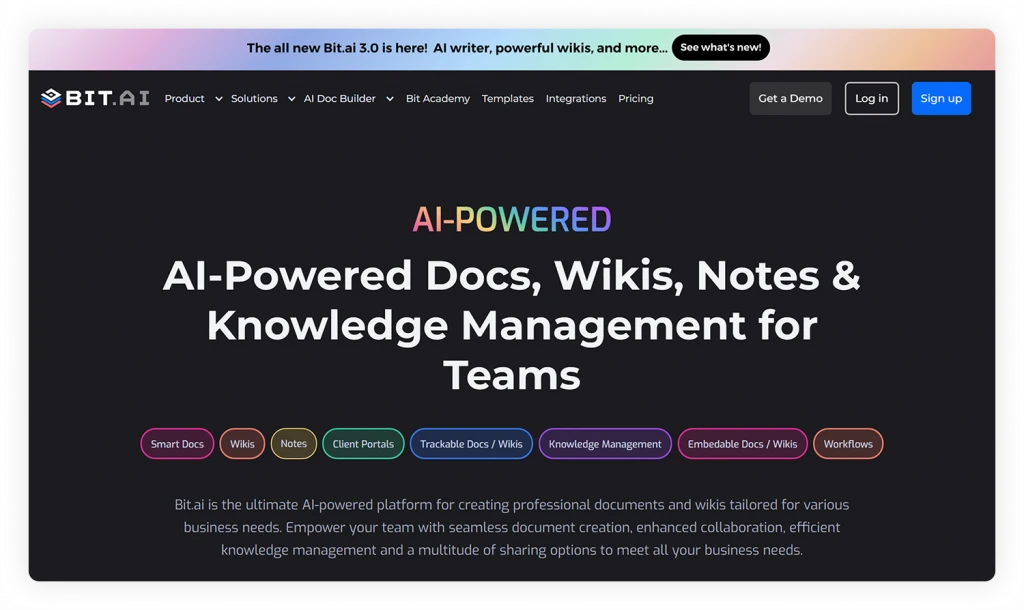
Here are some Bit.ai features that can help you create an effective digital workspace:
- Team Workspaces: Create dedicated workspaces for different projects, departments, and business initiatives.
- Folders and Subfolders: Organize documents and resources into a structured hierarchy.
- Wikis: Build centralized knowledge hubs for company guidelines, SOPs, FAQs, and internal processes.
- Smart Documents with Rich-Media Embeds: Add embeds from 100+ integrations, including videos, spreadsheets, presentations, PDFs, forms, and other interactive content.
- Built-in AI Writing Assistant: Create, rewrite, summarize, and improve content with AI assistance directly within your documents.

Need help turning a business initiative into a clear plan or structured document? Bit.ai’s AI generators can help you create essential project documents, define processes, and organize key information faster.
- Real-Time Collaboration: Work together using live editing, comments, @mentions, and notifications.
- Multiple Sharing Options: Share documents and workspaces through live links, trackable links, and permission-based access for team members and external collaborators.
These features make Bit.ai a useful option for businesses looking to centralize project documentation, team knowledge, and collaboration in one digital workspace.
Now, apart from the tool, the following best practices can help teams maintain clarity, keep information accessible, and make collaboration more effective in workspaces.
Looking for more ways to strengthen teamwork across departments?
Explore Bit.ai’s team collaboration hub for practical strategies and resources. →
Best Practices for Managing Business Initiative Workspaces
If you want to keep an initiative workspace useful, follow these practical tips to prevent it from becoming a collection of outdated files and scattered information.
1. Give the Workspace One Owner
Name one person who is responsible for the workspace. This person checks that pages are current, that new members get access, and that the structure stays clean. If you assign multiple owners, none of them does it.
2. Keep the Workspace Structure Simple
Use short, clear section names, such as Overview, Plan, Documents, Decisions, and Reports. Avoid creating too many nested folders or duplicate sections. Keep the structure shallow and intuitive so team members can locate information quickly without having to search through multiple folders or ask others for links.
3. Write Everything Down in One Place
Agree on one rule: any decision that changes the plan, budget, or timeline gets recorded in the workspace. Chat is fine for quick questions, but it is a poor place for decisions, because messages get buried within days.
4. Control Access Carefully
Give edit access to the people doing the work and view access to people who only need updates. Review the member list once a month and remove anyone who has left the project. Keep sensitive files, such as contracts and salary data, in restricted folders.
5. Archive Completed Workspaces for Future Reference
Once the initiative is complete, conduct a final review to document key outcomes, lessons learned, and areas for improvement. Update the workspace with final reports and decisions, then switch it to read-only access to prevent further changes.
Keep an archived copy instead of deleting it, so teams can revisit past work, refer to important information, and use the workspace as a starting point for similar future initiatives.
So, put these best practices into action and start building a workspace that makes collaboration easier and keeps your team on track!
Need to share project documents with clients or external teams while keeping access under control?
Learn how to collaborate securely without losing document control. →
Conclusion: Give Every Business Initiative a Digital Home
Digital workspaces turn scattered files, buried chat threads, and endless status meetings into one place where a team can see the plan, the tasks, and the decisions. Every major business initiative, whether it is a product launch, a software migration, or a rebrand, gets better results when it has a home like that.
The setup of the workspace is simpler than most teams expect. Just remember three things:
- One initiative, one dedicated workspace, one accountable owner.
- Keep the workspace structure simple, consistent, and easy to navigate.
- Make regular updates to keep information current and useful.
So, pick your most important project this week, write its goal, name an owner, and create your first page of the new digital workspace. When the project ends, save the workspace as a template, and use what worked to make the next workspace even better.
Looking for ready-made structures to organize your initiative and keep everyone aligned? Explore Bit.ai’s customizable templates to document project plans, assign responsibilities, coordinate stakeholders, and standardize workflows.
FAQs About Digital Workspace for Business Initiative
Q1. Can a digital workspace be used to collaborate with external partners?
Yes, Most digital workspace tools let you invite clients, vendors, and contractors as guests with limited access. They can view relevant pages, leave comments, and share feedback without accessing your internal files. In Bit.ai, you can create separate client portals for external stakeholders to share project documents and collaborate on content.
Q2. How do you prevent outdated or duplicate information in a digital workspace?
Assign an owner to each workspace who is responsible for reviewing and updating its content regularly. Move outdated versions into an Archive folder, label key documents as Draft or Final, and do a quick monthly cleanup to remove duplicate files and keep information current.
Q3. What is the difference between a digital workspace and project management software?
Project management software tracks tasks, deadlines, and who is responsible for what, while a digital workspace holds everything a business initiative needs, including documents, decisions, meeting notes, and reports.
While project management tools focus on tracking work, a digital workspace brings the information and resources teams need to work together into one place.
Q4. Can multiple teams work in the same digital workspace?
Yes, and it is one of the main reasons to use a digital workspace. Add each team to its specific workspace, assign roles, set access permissions, and share relevant information across departments.
Q5. How can businesses make information easier to find in a digital workspace?
Organize information into clearly named folders, sections, and pages based on projects or business initiatives. Use consistent naming conventions, add relevant tags, and make use of search features so team members can quickly find documents without asking others where they are stored.
About Our Editorial Team
Our Editorial Team researches, writes, and reviews every article to help ensure it is accurate, practical, and up to date. To learn more about our editorial standards, content review process, and official social media profiles, visit our Editorial Team page.
Why Trust This Article?
The information in this article is based on reputable and authoritative sources. We review our content periodically to keep it accurate and up to date.